
When a customer's item fails under warranty, you replace it at no charge. In XtremeCRM, that replacement goes on the customer's own order using the Warranty order type, so the replacement and the returned unit both stay on that customer's history.
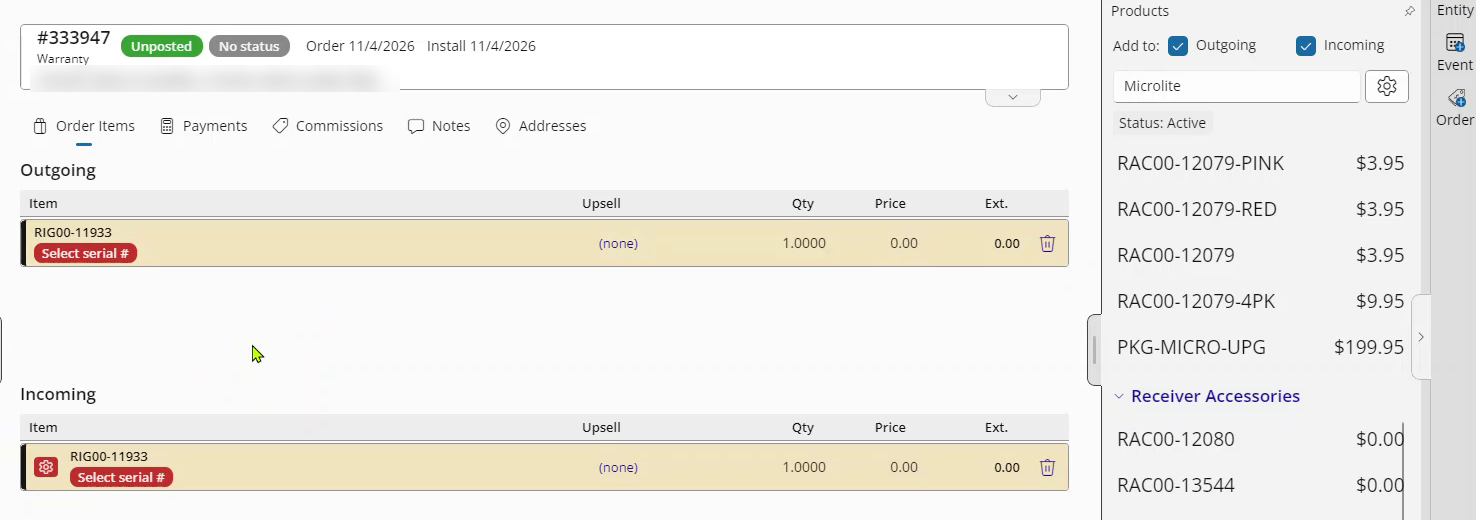
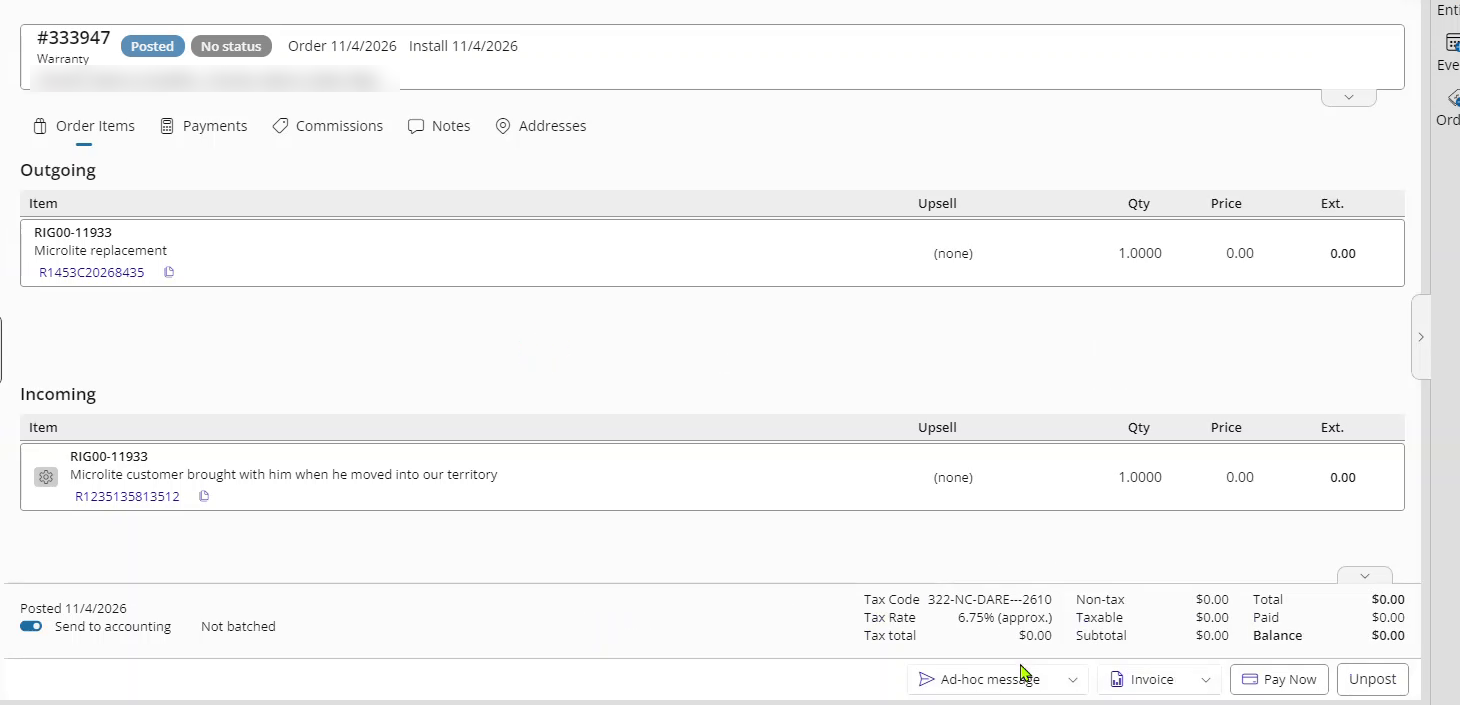
A Warranty order has two sections: Outgoing (the replacement going to the customer) and Incoming (the defective unit coming back). Prices on both sides are $0.00, so the order does not create a balance. When you post, the replacement comes out of your inventory. What happens to the returned unit depends on the Return to inventory choice in step 4.
Before you start:
- Have the serial number of the defective unit and of the replacement, if the item is serialized.
- Make sure the replacement is in stock at the location it is coming from (your warehouse or a technician's van).
1. Open the customer and start an order
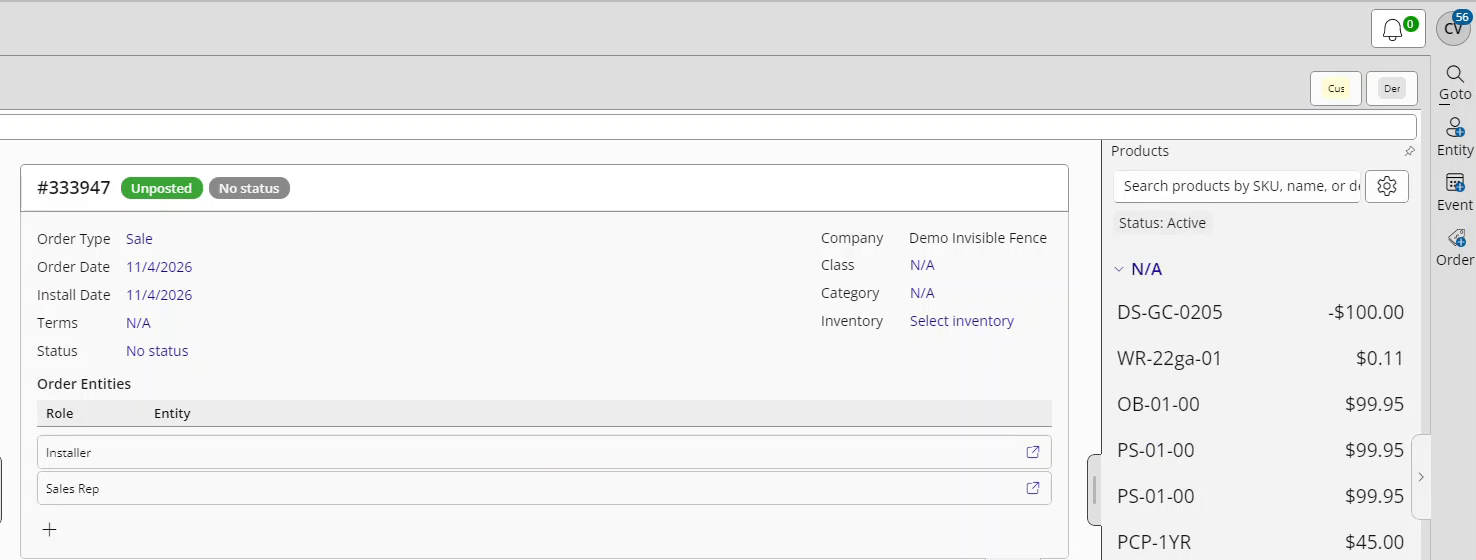
Open the customer (press Alt+G or search for them), then click Order in the right-hand tray. The order is created right away as an Unposted Sale. You change the type in the next step.
You can also start it from the appointment: open the appointment, go to its Order tab and click Add Order.
2. Set the Order Type to Warranty
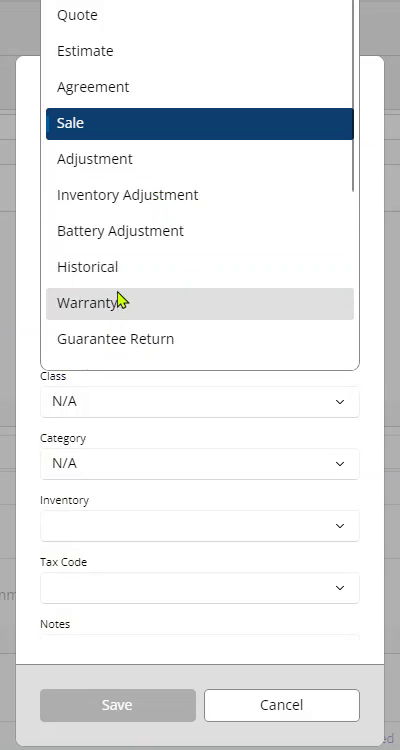
- Click the Order Type link at the top of the order to open Edit Order Header.
- Set Order Type to Warranty.
- Check that Inventory is the location the replacement is coming from.
- Save.
Once the type is Warranty, the order shows two sections: Outgoing on top and Incoming below. Also fill in the Order Entities: click each role (such as Installer or Sales Rep) and pick the person.
3. Add the product to both sides
- Open the Products pane.
- Next to Add to:, tick both Outgoing and Incoming.
- Double-click the product (or select it and press Enter). XtremeCRM adds it once to Outgoing and once to Incoming.
Replacing with a different product? For example, swapping to a newer model: tick only Incoming and add the defective product, then tick only Outgoing and add the replacement.
Add serialized items one line per serial number.
4. Fill in the Return details on the Incoming line
The Incoming line shows a red gear until its details are filled in, and the order cannot be posted until it is done.
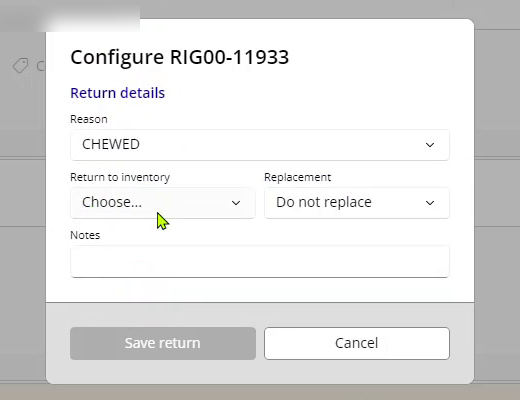
- Click the gear on the Incoming line. The Configure window opens on Return details.
- Set Reason to the one that fits (for example, Defective - No Signal or Dog Chewed). The list is your own, so the names may differ.
- Choose Return to inventory. It starts blank, and you have to pick one:
- Do not return: the defective unit is not going back on your shelf (it goes back to the manufacturer or is thrown away). Most warranty returns use this.
- As used: the unit still works and you will reuse it. It goes back into stock marked as used.
- As new: the unit goes back into stock as new.
- Replacement and Notes are optional. Replacement is for your records only; it does not add the replacement item for you. The replacement is the Outgoing line.
- Click Save return.
5. Enter the serial numbers
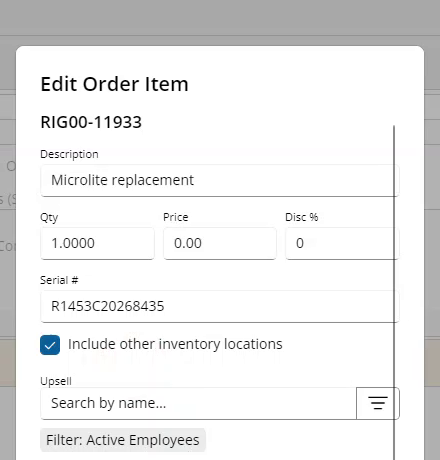
- On each serialized line, click the red Select serial # button. Edit Order Item opens on the Serial # field.
- Outgoing line: pick the replacement's serial number from the list. Only serials in stock at that location are offered. If it says None in stock here, the replacement is not at that location. If it is somewhere else (for example, the warehouse instead of a van), tick Include other inventory locations to pick it from there.
- Incoming line: the list shows the serial numbers this customer was sold. Pick the defective one, or type it in if it is not listed.
- Click Save.
Leave the price at $0.00.
6. Post the order
Check that the order total is $0.00, then click Post. The replacement is removed from your inventory. The returned unit goes back into stock only if you chose As new or As used.
If Post is refused, XtremeCRM lists every reason. The usual ones are:
| Message | What to do |
|---|---|
| Return reason not specified | The Incoming line's gear still needs a Reason (step 4). |
| Serial number not specified | A serialized line has no serial number (step 5). |
| Serial number not in inventory | The replacement's serial is not in stock at that location. Move or receive it there first, or pick a serial that is in stock. |
| No tax code | The customer's address could not be matched to a tax code. Correct the address, or choose a tax code in Edit Order Header. |
| Order entities unassigned | A role on the order (such as the technician) still needs a person. |
7. Print or send the invoice (optional)
Use the Invoice button at the bottom of the order to print the invoice, or Ad-hoc message to send it. The total shows $0.00.
Good to know
- A posted order is locked. To change it, click Unpost, make the change, then Post again. Notes and Memo can still be edited on a posted order.
- Do not use an Inventory Adjustment for a warranty replacement. It keeps the replacement off the customer's history.
- If you see prices on a Warranty order instead of $0.00, contact XtremeCRM support. Your Warranty order type may need its $0 pricing turned on.